
Rapid Surfing · Portrait Follow guide
Turn your Rapid Surfing recording into a 9:16 follow video.
Portrait Follow moves a vertical crop within your original recording to follow the selected surfer. This guide takes you from a full session to separate ride clips or a personal reel, with the checks to make before sharing.
Before you start
You need DeepSurfCut on iPhone, iPad or Mac, your original recording, and DeepSurfCut Pro for Portrait Follow export. Keep the original video available throughout editing and export.
Start with a steady, landscape recording of a rapid surfing or standing-wave session. Keep the entry, riding area and fall area visible, with enough detail and space around the surfer. Portrait Follow crops the existing picture; it cannot recover a person who has moved outside the original frame.
For moving cameras, distant surfers or other surfing conditions, try a representative ride first. Analysis runs on your device, without uploading the source video. See the surf video editing guide for recording advice and supported use cases.
See the result
Original recording · 16:9
Portrait Follow export · 9:16
Create your vertical video
Import and analyze the original
Import the full recording and check that the right video opens. Start the session analysis and wait for the surfer groups and timeline. Before analysis, check that the surf area covers the part of the recording where people ride.
Review the surfer and each ride
Play the clips assigned to your surfer. Move incorrectly assigned clips to the correct surfer track and adjust start and end points where needed. Check crossings, falls and moments when another person hides the surfer; these are useful places to catch grouping or tracking problems.
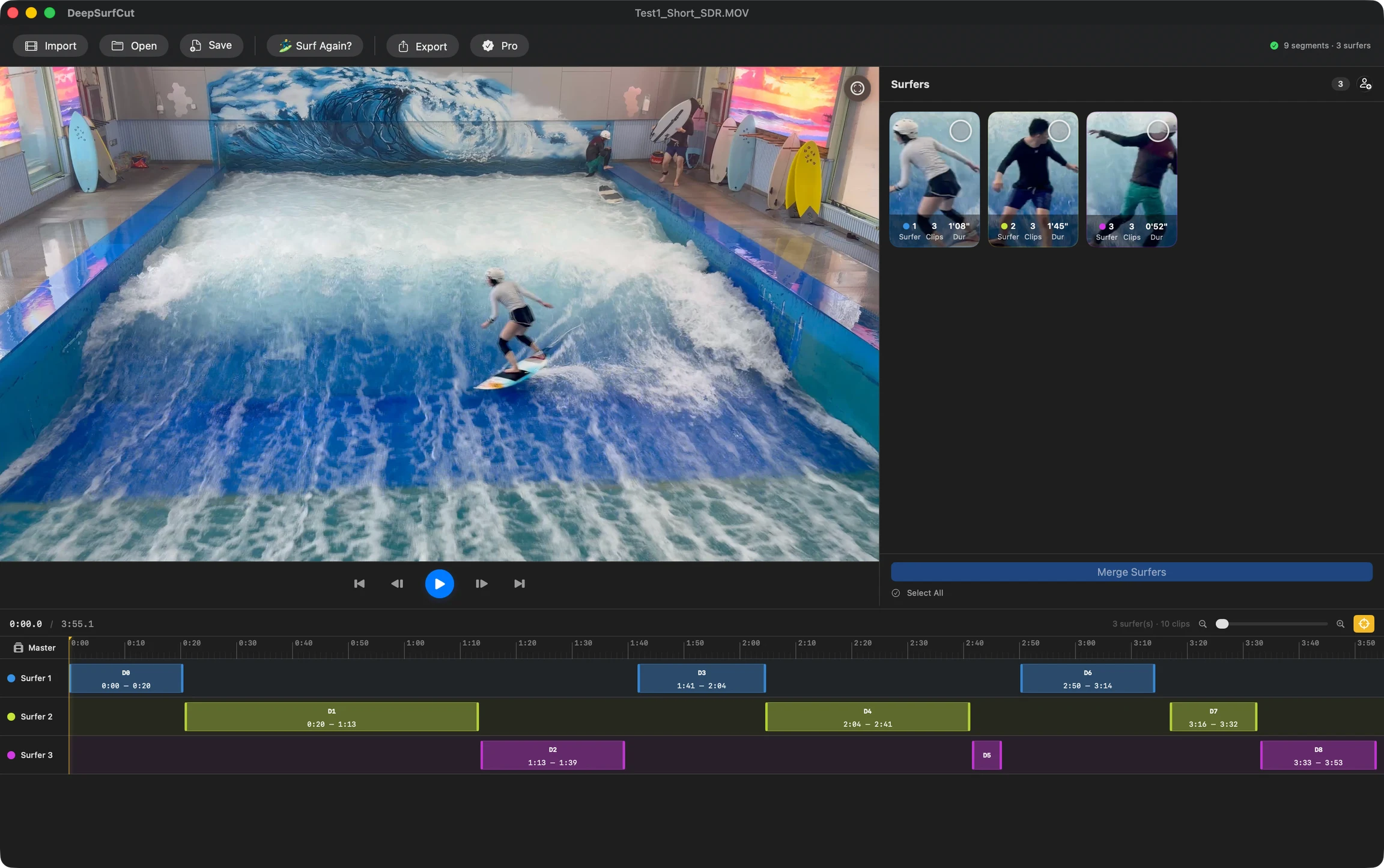
The DeepSurfCut Mac timeline: review surfer groups and clip boundaries before exporting. Choose separate clips or one reel
In Settings, use Merge clips into a single video per surfer. Turn it on to combine each selected surfer’s rides into their own video. Turn it off to export rides as separate files.
Then open Export and select the surfer or surfers you want. If you only need one person’s video, leave the other surfers unselected.
Enable Portrait Follow
In the export settings, turn on Portrait 9:16 · Follow surfer. Use the clip-padding controls if you want to keep footage before or after each ride. Choose whether to include the DeepSurfCut outro.
If a message says some clips have no tracking path, analyze the original video again before using Portrait Follow. Older projects can contain editable clips without the follow data needed for a vertical export.
Export and open the finished video
On iPhone or iPad: select Export and allow access to Photos when asked. The app attempts to save completed videos to Photos; use Share to save or send the exported files.
On Mac: choose an output folder, then select Export. Wait for completion and open the resulting files. Check a representative export before preparing a larger set.
Check the finished export
Watch the exported file from start to finish. The timeline helps you review the edit; the actual export shows the final 9:16 framing.
- Right person: the framing should follow the selected surfer, including when people cross or overlap.
- Useful framing: check the surfer and board near the picture edges, through turns, and at the entry and fall.
- Right timing: keep the beginning and ending you intended, including any added footage around the ride.
- Complete result: check the source audio, any outro you chose, and whether each file contains one ride or the intended reel.
If a crop loses an important moment, inspect the original and the surfer assignment. Correct the edit and export again. If the source or tracking cannot support a useful vertical view, turn Portrait Follow off and keep the original framing for that export.
Common questions
Do I need to record in portrait?
No. Start with the landscape recording you already have. The 9:16 view is a moving crop inside that video, so source detail and the space around the surfer matter.
Why is the follow option asking me to analyze again?
At least one selected clip lacks the tracking path needed for following. Analyze the original again, review the new results, then retry the export. You can also turn Portrait Follow off to export with the original framing.
Will the crop always follow the right person?
No. Occlusion, spray, low visibility, camera movement and similar-looking people can affect tracking or grouping. Review the selected surfer and the exported crop instead of assuming every ride will work equally well.
What if the video finished exporting but did not save to Photos?
On iPhone and iPad, check Photos access and use the completed export’s sharing option. Completed files that have not been saved may also be available in Unsaved Exports. See DeepSurfCut support if you need help recovering a file.